Safety Check lets you see everyone and everything you share personal information with on your iPhone, then cut off access in a single place. It's built for situations like leaving a relationship where you shared locations, photos, or accounts, and need a fast way to take that access back. We also recommend using it before and after major trips to check out any apps you may have needed or contacts you made while traveling.
It's a privacy-focused iPhone safety feature designed to help you quickly review your device's security and sharing permissions.
What is iPhone Safety Check?
Safety Check is a privacy feature that shows you who has access to your shared information and gives you two ways to change it. The first option, Emergency Reset, cuts off everyone and everything immediately. The second, Manage Sharing & Access, walks you through reviewing people and apps individually.
Safety Check can review and update:
- People you share your location, photos, or other content with
- App permissions and data access
- Devices signed into your Apple Account
- Your Apple Account password and device passcode
- Your Face ID or Touch ID information
- Your emergency contacts
Safety Check is available on any iPhone running a current version of iOS.
If you're looking to secure your iPhone more broadly, Stolen Device Protection is another safety feature worth turning on, since it protects your accounts if your iPhone is ever physically stolen.
How to use Emergency Reset
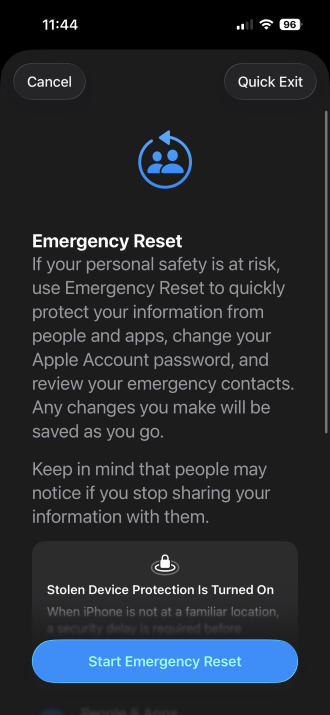
Image: Max McCaskill
Emergency Reset immediately stops sharing your location, photos, and other information with everyone, and revokes every app's access at once. This is the option built for situations where you need to act fast and sort out the details later, like:
- Ending a relationship and needing to cut off access immediately
- Discovering someone has been tracking your location without your knowledge
- Losing your phone in a place where a stranger could access shared content
To use Emergency Reset:
- Open Settings and tap Privacy & Security.
- Tap Safety Check.
- Tap Emergency Reset.
- Follow the onscreen instructions to complete the reset.
Your progress is saved as you go, so you can stop and pick up where you left off if needed.
How to use Manage Sharing & Access
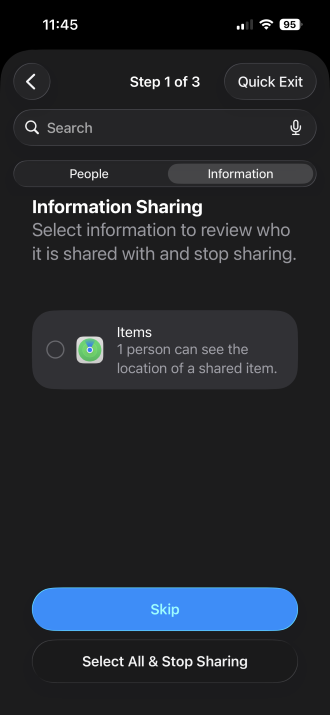
Image: Max McCaskill
Manage Sharing & Access walks you through your information sharing case by case, rather than cutting everything off at once. It's a better fit if you want to keep sharing with some people or apps while cutting off others, like:
- Ending location tracking for one person while continuing it for others
- Cleaning up permissions after realizing an old app still has access to your contacts
- Removing a former roommate's access to a shared photo album
To use Manage Sharing & Access:
- Open Settings, tap Privacy & Security, then Safety Check.
- Tap Manage Sharing & Access.
- Review the people you're sharing information with, and choose what to stop sharing with each one.
- Review which apps have access to your information, and revoke access where needed.
- Review devices signed into your Apple Account, update your passwords or passcode, and confirm your emergency contacts.
Your changes are saved as you go through each step.
Max McCaskill
Sr. Staff Writer

Find a better phone plan
Thousands of cell phone plans unpacked. All the facts. No surprises.


.png?w=280&h=280&usm=20&usmrad=0.8&fit=crop "Best Cell Phone Deals for August 2026: Get the New iPhone 17 for Free")

.jpg?w=280&h=280&usm=20&usmrad=0.8&fit=crop "Best Back-to-School Phone Deals 2026: Free iPhones, Tablets, Watches, and More")


.png?w=280&h=280&usm=20&usmrad=0.8&fit=crop "The Best Family Cell Phone Plans for 2026")