
Image: Max McCaskill
Don't panic if your iPhone has been sitting on the same update screen for a while. If the iOS update is genuinely stuck, you can almost always fix the issue without losing your data by restarting your iPhone or putting it in Recovery Mode.
On the other hand, your iPhone may not even be stuck. iOS updates can take up to an hour, and a screen that looks frozen is often just slow.
We'll help you figure out if your iPhone iOS update is truly stuck, and which fix you can use to help get your device working again. You can also check our guide to the latest version of iOS to confirm which version you should be running.
My iOS update is stuck: Emergency quick guide
| What you're seeing | What it means | Best fix |
|---|---|---|
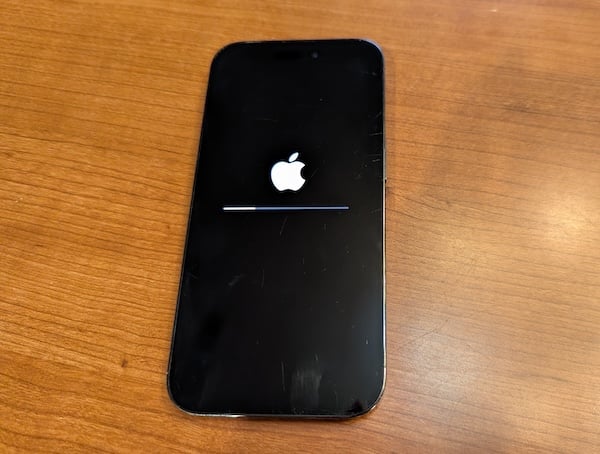
| Apple logo with a slow-moving progress bar | Update is installing, just slowly | Wait it out |
| Download screen stuck on "Preparing Update" or "Update Requested" | iPhone can't reach Apple's servers or download has stalled | Toggle Airplane Mode or force restart |
| Stuck on a black screen with Apple logo for over an hour | Installation has frozen or update may have corrupted | Force restart, then try iTunes/Finder or Recovery Mode |
1. Wait it out
Before you do anything else, give your iPhone time. A normal iOS update can take up to an hour from start to finish, and some screens that look frozen are actually just slow installations. This is especially common right after a major iOS release, when download file sizes are large and Apple's servers are handling millions of requests at once.
That said, if your screen hasn't changed at all for more than an hour, the iOS update is probably frozen. Consider moving on to one of the methods below to get the installation moving again.
While you're waiting, make sure your iPhone is:
- Plugged into power
- Connected to Wi-Fi
- Not covered or overheating
2. Toggle Airplane Mode
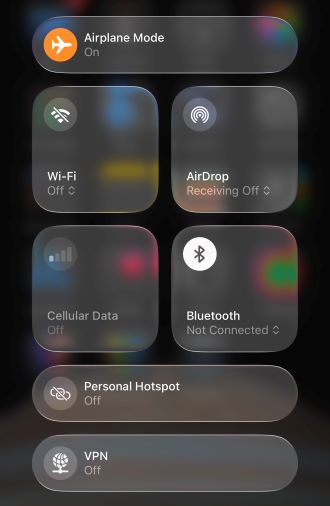
Image: Max McCaskill
Before any iOS update begins, your iPhone has to request the software download from Apple's servers. If your iPhone is stuck on "Preparing Update" or "Update Requested" and isn't progressing, it likely can't connect to Apple's servers or the download has stalled. Toggling Airplane Mode off and on can reset the connection and fix the problem.
- Swipe down from the top right corner of your screen to open Control Center.
- Tap the Airplane Mode icon to turn it on.
- Wait a few seconds, then tap it again to turn it off.
- Try the update again.
If the update still won't start, move on to a force restart.
3. Force restart your iPhone
A force restart doesn't erase anything on your phone. It just makes the device reboot and clears whatever process got stuck. This is the first method to try if you can't download an update from Apple's servers or if the update itself is stuck on the Apple logo with a black screen.
The button sequence depends on your iPhone model:
iPhone 8 or later (including all Face ID models)
- Press and quickly release the Volume Up button.
- Press and quickly release the Volume Down button.
- Press and hold the Side button until the Apple logo appears.
iPhone 7 and 7 Plus
- Press and hold the Volume Down and Side buttons at the same time.
- Release when the Apple logo appears.
iPhone 6s or earlier
- Press and hold the Home and Top (or Side) buttons at the same time.
- Release when the Apple logo appears.
After the restart, your iPhone will either resume the update or boot up as normal. If the update screen comes back and freezes again, you'll need help from iTunes or a Mac.
For more details on forced restarting and how the process works, check out our guide to how to reset an unresponsive iPhone.
4. Update via Finder or iTunes instead
If the update keeps stalling over Wi-Fi, bypassing it entirely and updating through a computer is a reliable workaround. This method downloads the full update file directly to your Mac or PC, which sidesteps server congestion and any corrupted partial downloads on your device.
Before you start, you'll need:
- A Mac or PC
- A Lightning or USB-C cable (depending on your iPhone model)
- iTunes installed and up to date if you're on a PC (Mac uses Finder)
To update your iOS using Finder or iTunes:
- Connect your iPhone to your computer with the cable.
- On a Mac: Open Finder and select your iPhone in the sidebar.
- On a PC: Open iTunes and click the iPhone icon near the top left.
- Click Check for Update.
- Click Update.
- Follow the on-screen instructions and keep your iPhone connected until it's done.
5. Recovery Mode
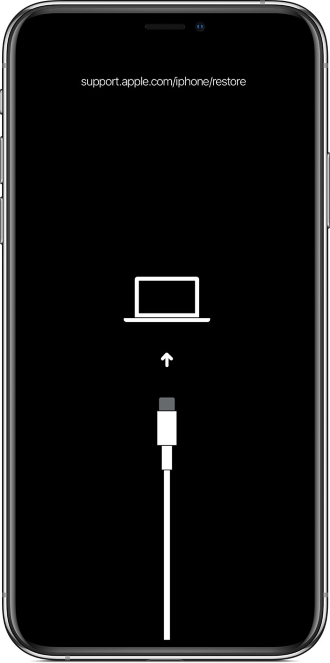
Image: Apple
If none of the other methods have worked and your iPhone is still stuck on the Apple logo with no progress, Recovery Mode is your last option. This is a more serious step since it will erase your iPhone and reinstall iOS from scratch. If you have a physical or iCloud backup, you'll be able to restore most of your data afterward.
You'll need a Mac or PC, and your Lightning or USB-C cable.
Step 1: Put your iPhone into Recovery Mode
The button sequence is the same as a force restart, but hold the final button longer, until you see the Recovery Mode screen (a cable pointing to a laptop icon), not just the Apple logo.
- iPhone 8 or later: Press and quickly release Volume Up, press and quickly release Volume Down, press and hold the Side button until the Recovery Mode screen appears.
- iPhone 7/7 Plus: Hold Volume Down and Side button simultaneously until the Recovery Mode screen appears.
- iPhone 6s or earlier: Hold Home and Top (or Side) button simultaneously until the Recovery Mode screen appears.
Step 2: Connect to your computer
Plug your iPhone into your Mac or PC while it's in Recovery Mode. It will be recognized automatically in Finder on Mac, or in iTunes on PC. When prompted, choose Restore.
Step 3: Restore from backup
Your iPhone will restart as if it's brand new. Follow the setup steps and choose to restore from an iCloud or iTunes backup when prompted. If your backup is recent, you'll get most of your data back.
Common causes of a frozen iOS update
iOS updates can fail or freeze for multiple reasons, but most of them are preventable. Here are some of the most common causes of a frozen iOS update on your iPhone:
- Not enough storage: iOS updates need space to download and unpack before installing. If your iPhone is nearly full, the process can stall partway through without giving you a clear error message.
- Poor internet connection: A weak or unstable Wi-Fi signal can interrupt the download or installation. Always update your iPhone using a reliable Wi-Fi connection, not your cellular data.
- Low battery: iPhones require a minimum charge level before they'll install a major update. If your battery drops too low during the process, the update can stall or fail. Keep your phone plugged in throughout the entire installation.
- Corrupted download: Occasionally the update file itself downloads incorrectly, which causes the installation to hang. This is more common if downloading with an unstable internet connection, so updating with Finder or iTunes usually resolves it.
- iOS too far out of date: If your iPhone is running a very old version of iOS, Apple sometimes requires intermediate updates before it can jump to the latest version. This can cause unexpected delays in the update process.
My iOS update is stuck: FAQ
Why does iOS get stuck during an update?
iOS gets stuck during an update due to things like a weak Wi-Fi connection, not enough free storage space, or Apple's servers being overloaded right after a major release. In rarer cases, a corrupted download file can also cause the process to stall.
Will I lose my data if I force restart during an iOS update?
It's unlikely that forcing a restart during an iOS update will cause you to lose data, but it is possible. When your iPhone is completing the update process, it's actively modifying the internal system files, meaning shutting it down can cause data corruption. In most cases the phone will either resume or roll back cleanly, but there are cases where cancelling an update mid-installation can cause data loss or break the device.
Can I stop an iOS update once it has started?
Once your iPhone is showing the Apple logo, you can't stop an iOS update. Interrupting it at that stage can cause data loss or corrupt the device. You should only attempt to cancel the iOS update by restarting the iPhone or using Recovery Mode if it's genuinely frozen.
How long should an iOS update take?
If you have a high-speed internet connection and are running a recent version of iOS, a normal iOS update should not take more than an hour from start to finish, including downloading, preparing, and installing. If you have a slow internet connection or have missed several iOS updates, the process can take much longer.
Max McCaskill
Sr. Staff Writer

Find a better phone plan
Thousands of cell phone plans unpacked. All the facts. No surprises.


.png?w=280&h=280&usm=20&usmrad=0.8&fit=crop "Best Cell Phone Deals for August 2026: Get the New iPhone 17 for Free")

.jpg?w=280&h=280&usm=20&usmrad=0.8&fit=crop "Best Back-to-School Phone Deals 2026: Free iPhones, Tablets, Watches, and More")


