Family Sharing is Apple's built-in account manager to pool subscriptions, purchases, and storage, and track locations across the people in your household.
There are plenty of reasons to use Family Sharing. Maybe you realized multiple family members were paying for the same streaming service, or caught your elementary schooler buying in-game app currency with your credit card. You might also want to limit your kids' screen time on school nights or monitor where your teen goes with friends on the weekends.
The Apple Family Sharing setup process isn't difficult, but you'll have some decisions to make upfront, like whether a family member gets their own Apple ID or needs a Child Account.
What is Apple Family Sharing?
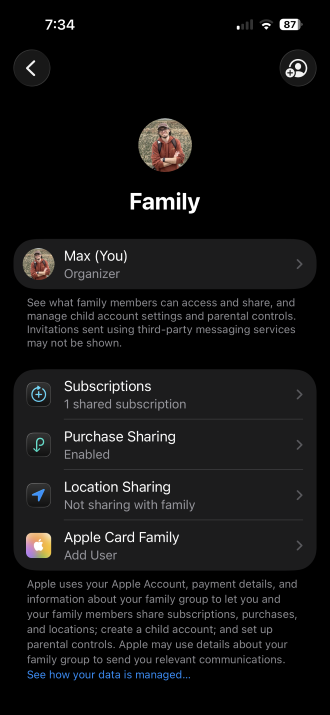
Image: Max McCaskill
Apple Family Sharing is a free account management feature that lets up to six people share Apple subscriptions, purchases, iCloud storage, and location without sharing individual Apple IDs.
Everyone keeps their own Apple ID account and on-device privacy. You don't share messages, photos, or notifications with other members. Family Sharing simply links accounts for things that make sense to split, like a shared Apple Music family subscription, iCloud storage, and payment methods across everyone's App Store purchases.
How to set up Apple Family Sharing
Setting up Family Sharing only takes a few minutes, but everyone will need their own Apple ID to organize or join a family group. If you or a family member doesn't have one yet, our guide on how to create an Apple ID can walk you through the setup process in a few minutes.
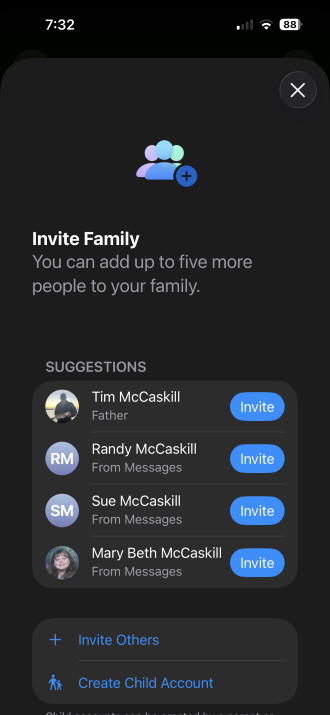
Image: Max McCaskill
To set up Apple Family Sharing:
- Open Settings on your iPhone.
- Tap your profile at the top.
- Tap Family.
- Follow the onscreen prompts to create your family group.
- Tap the Add Member button to invite someone.
- Choose whether you're inviting an existing Apple ID or creating a new account for someone without one.
- Decide what services you want to share and tools you want to use.
If you're adding another adult or teen with their own Apple ID, you'll send them an invite they can accept from their own device. If you're setting things up for a child who is age 13 or younger and doesn't have an Apple ID yet, you'll need to create a Child Account for them. Apple walks you through adding the birthdate, some basic account details, and setting up the initial parental control settings.
Apple Family Sharing features and tools
Family Sharing is designed to relieve pressure points that can make having multiple accounts for individual family members difficult or expensive. That mainly includes the categories for:
- Shared subscriptions
- Purchase sharing
- iCloud storage
- Location tracking
Shared subscriptions
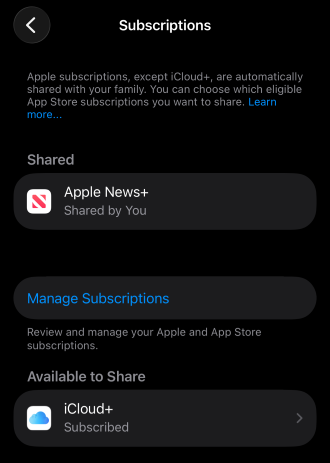
Image: Max McCaskill
Shared subscriptions mean that any family member can share an eligible subscription with the rest of the group, and it shows up automatically in everyone's respective apps. That includes subscriptions for things like:
- Apple app subscriptions like Apple One, Music, TV+, News, and Arcade
- iCloud+ storage plans
- Any third-party app the developer has flagged as shareable in the Apple App Store
Using Family Sharing almost always works out cheaper than buying those services separately for each member of your household. However, you should note that this won't work with every app. Extremely popular third-party services like Netflix or Spotify will require you to add users or buy additional plans regardless of Apple Family Sharing.
Purchase Sharing and Ask to Buy
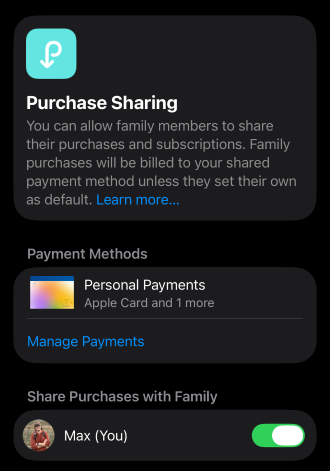
Image: Max McCaskill
Purchase Sharing allows everyone in the family group to use the same payment options for purchases from the App Store, iTunes Store, and Apple Books. It also allows previously purchased content to be shared with the whole family.
For kids on a Child Account, this also unlocks the Ask to Buy feature. Every download on Apple Child Accounts—free or paid—needs a parent's approval before it goes through. Your child can request to purchase or download a new app on their own device, and a notification will pop up on yours.
This tool is really useful for things like monitoring spending, since plenty of "free" kids' games are built around in-app purchases and pay-to-play mechanics designed to get a child to ask for money mid-game. It also gives you a checkpoint to catch a download that isn't age-appropriate so it's never installed on their device.
Shared iCloud storage
Family Sharing also lets everyone in the group pull from one iCloud+ storage plan instead of paying for separate tiers. It's split automatically based on what each person's photos, backups, and files actually need.
Although your family will share one plan, no one else in the family can see the contents of another member's storage, only how much space it takes up. This makes iCloud sharing great for backing up devices and securing your data, without worrying about your photos, messages, or notifications being shared with other family members.
Location sharing
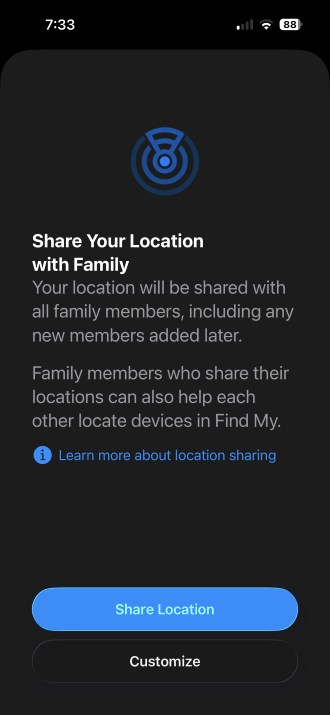
Image: Max McCaskill
Family Sharing turns on Find My across the group, so you can see where everyone's devices are on a map. You can also set up notifications for when a family member arrives or leaves a specific location, and help locate lost Apple devices like iPhones, iPads, or AirPods.
While Find My can show your family's live locations, it doesn't have the in-depth reporting tools found on third-party apps like Life360. If you're serious about tracking your family, we recommend using both services, since Apple Family Sharing is free anyway.
Apple Family Sharing and parental controls
Once you've added a Child Account to your Family Sharing group, it unlocks features like Ask to Buy, specific content restrictions, and Apple's Screen Time features. Once you set these up, they apply across any Apple device your child is using and can be edited at any time.
The parental control features of Family Sharing got a major overhaul with iOS 27. The tools are organized around monitoring what your kid can see, who they can talk to, when they can use their device, and how you stay informed about their activity.
iOS 27's parental tools introduced features like:
- Ask to Browse: Extends the content approval notifications to Safari, requiring parental sign-off before visiting a new website. Note that this does not apply to third-party browsers like Chrome, Firefox, or Brave.
- Time Allowances: Set daily screen time limits by category, like Entertainment, Games, and Social Media, instead of one blunt daily cap. These can also be extended for certain days, so you can have shorter limits on school nights or more playtime on weekends.
- Communication Safety: The device will automatically screen for violent, graphic, and explicit content in shared photos and videos on Apple's native messaging services.
- Contact approval: Parents approve all new contacts for Messages, FaceTime, and Phone to ensure their child can only communicate with approved people.
If you want even more granular screen time tracking or you're managing devices outside Apple's ecosystem (say one kid wants an iPhone and the other wants an Android), it's worth looking at the best apps to manage screen time and our broader roundup of parental control apps for smartphones.
You should also note that these tools are only effective within Apple's native services, like Messages and FaceTime. Apple can't screen content or prevent your child from connecting with others in third-party apps like Snapchat, WhatsApp, or Discord. You should always talk to your child about online safety and consider if they're old enough before allowing them to download these kinds of apps.
Is your child ready for their first iPhone?
While Family Sharing makes it easier to manage your child's account, purchasing a kid's first phone comes with its own set of questions. If you're not sure a phone makes sense for your child yet, our guide on when kids should get a cell phone walks through what to weigh before you buy one.
Before buying your child an iPhone, make sure you've considered questions like:
- Is my child old enough to use a smartphone responsibly?
- Do they need an unlimited plan, or can they get by with a talk and text plan with very little data?
- What kind of screen time limits do I want to set up?
- How much privacy am I willing to give them with their messages, photos, and browsing history?
If you've already decided it's time, our picks for the best cell phones for kids can help you figure out what device is actually best for their needs, including iPhones, Androids, and dumbphones. We also recommend parents consider buying older or used models for their kids, so the sting to your wallet isn't as bad in case they lose them or crack the screen.
Apple Family Sharing: FAQ
Can Apple Family Sharing track your family members?
Yes, Apple Family Sharing can track everyone in your family group as long as the device has location services turned on, has opted into Find My, and is connected to a signal. Family Sharing's location tracking shows real-time positions on the Find My app's map and can alert you when someone arrives at or leaves a set location, but it can't track a device that's turned off or without a signal.
Can someone leave an Apple Family Sharing group?
Yes, adult family members can leave an Apple Family Sharing group at any time from their own device. The group's organizer can also remove members at their discretion. However, family members with a Child Account can't leave on their own since those accounts are managed by a parent or guardian.
What happens to shared purchases if someone leaves an Apple Family Sharing group?
Apps, subscriptions, and media belong to the account that bought them. If you leave an Apple Family Sharing group, you keep access to the things you've personally paid for, but you lose access to everything that was only available because someone else in the family shared it.
Does Apple require child accounts for all kids?
Yes, all Apple users under age 13 are required to use a Child Account to access Apple's services like the App Store, Messages, or FaceTime. These accounts are available to users up to age 18, but many parents move their teenagers to standard Apple accounts once they're mature enough to handle them.
Max McCaskill
Sr. Staff Writer

Find a better phone plan
Thousands of cell phone plans unpacked. All the facts. No surprises.


.png?w=280&h=280&usm=20&usmrad=0.8&fit=crop "The Best Prepaid Cell Phone Plans of 2026 for Flexible and Affordable Service")