
Apple's Check In turns a walk home or a solo drive into something a friend or family member can quietly keep tabs on, without you having to text "I'm here" the second you arrive.
Check In automatically notifies a chosen contact when you reach your destination, or alerts them if you don't arrive as expected.
It's one of several iPhone safety features built directly into Messages that are designed to keep you safe without being overbearing.
Here's how to start a Check In, and what happens on the other end if something goes wrong.
What is iPhone Check In, and how does it work?
Check In lives in the Messages app and lets you share your journey with a specific contact, either until you reach a destination or until a timer runs out. Your contact doesn't see your live location while everything's going fine. They're only notified when you arrive safely or when something looks off.
There are three different types of Check In on iPhone:
- Destination
- Timer
- Workout
If your iPhone stops making progress toward your destination, the timer ends and you don't respond, or you don't complete your workout, your contact automatically receives an alert with your last known location and other details you've approved sharing.
Check In was introduced to iPhones in 2023, so it's available on any iPhone running a reasonably current version of iOS.
Destination Check In: Alerts when you arrive at a location
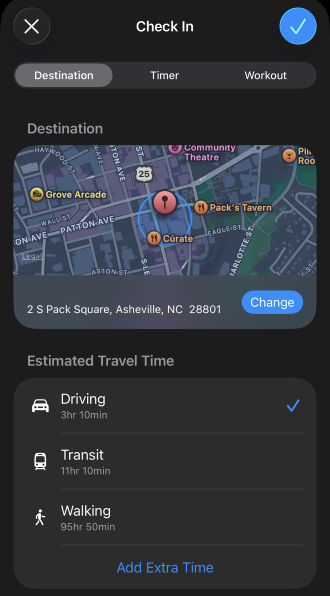
Image: Max McCaskill
This is a destination-based Check In. You set a location, and Check In tracks your progress toward it using your iPhone's location data. Once you arrive, your contact is notified automatically. If you stop making progress, your contact may also get a notification that something has gone wrong.
Timer Check In: Alerts if you don't respond at a certain time
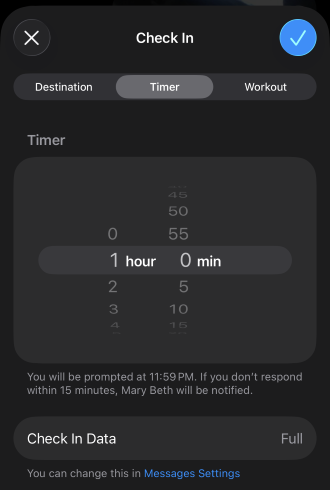
Image: Max McCaskill
This version runs on a countdown instead of a destination. It's useful for situations without a clear endpoint, like meeting someone new, where you want a check-in by a specific time rather than at a specific place.
Workout Check In: Alerts if you don't finish your workout or take a long pause
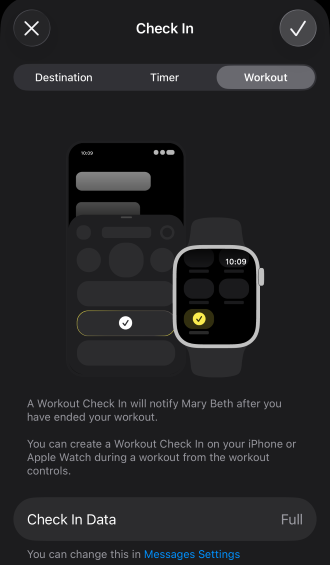
Image: Max McCaskill
Available through the Workout app on Apple Watch, this type notifies your contact when you finish a run, walk, or other workout. It can also send a notification if it looks like you're having physical trouble or if you take too long a pause.
How to start a Check In on iPhone
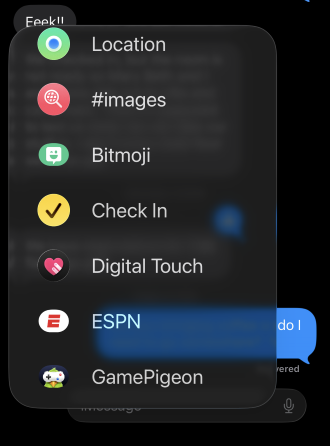
Image: Max McCaskill
To start a Check In:
- Open the Messages app and select a conversation, or start a new one.
- Tap the + button next to the text field.
- Select Check In, then tap Edit to adjust the details.
- Choose When I Arrive, After a Timer, or Workout.
- Send the Check In to your contact.
You can end, extend, or cancel a Check In at any time from the message in your conversation.
What happens if you don't arrive during an iPhone Check In
You control how much information your contact receives if a Check In doesn't end as expected. There are two settings you can pick from during setup:
- Limited shares your current location along with your iPhone's battery and network signal.
- Full includes all of that, plus the route you traveled and the location where your iPhone was last unlocked.
This information is only sent if your Check In doesn't complete normally. As long as you arrive on time, finish your workout, or end the Check In yourself, none of it is shared.
When to use iPhone Check In
iPhone Check In fits any situation where you want someone else to be aware of your status without manually texting updates.
Common uses for iPhone Check In include:
- Walking home at night, so a friend or family member knows you made it inside safely.
- Meeting someone for the first time, like a first date or an online marketplace exchange.
- Driving alone on a long trip, especially through areas with limited cell service.
- Going for a solo run or hike, particularly on unfamiliar trails.
- Traveling to or from the airport, so someone knows if a flight delay throws off your schedule.
The bottom line: Is iPhone Check In worth using?
Yes. Check In is worth using because it costs nothing, takes seconds to set up, and only shares your detailed location data if you don't arrive as expected. Your contact still gets a simple notification when you arrive safely, but the more detailed information, like your route and last known location, is only sent if something goes wrong.
Check In doesn't require ongoing attention once it's set up. You start it, go about your trip, and your contact is notified automatically, whether things go as planned or not.
Max McCaskill
Sr. Staff Writer

Find a better phone plan
Thousands of cell phone plans unpacked. All the facts. No surprises.


.png?w=280&h=280&usm=20&usmrad=0.8&fit=crop "Best Cell Phone Deals for August 2026: Get the New iPhone 17 for Free")

.jpg?w=280&h=280&usm=20&usmrad=0.8&fit=crop "Best Back-to-School Phone Deals 2026: Free iPhones, Tablets, Watches, and More")


.png?w=280&h=280&usm=20&usmrad=0.8&fit=crop "The Best Family Cell Phone Plans for 2026")
